

Send Files To TV
The growth of smart devices has changed the way people manage and share digital content. Today, users store different types of files on smartphones, tablets, and computers, but accessing these files on larger screens such as Android TVs and Smart TVs can sometimes be inconvenient.
Send Files To TV APK is a file transfer application designed to make sharing digital files between mobile devices and television platforms easier. The application focuses on providing a simple wireless transfer experience where users can send files such as applications, videos, images, documents, and other data between compatible devices.
With the increasing use of Android TV devices, users need easier ways to move content without depending on complicated methods such as cables, external storage devices, or lengthy setup processes.
Send Files To TV focuses on:
- Wireless file transfer
- Smartphone to TV sharing
- Android TV compatibility
- Fast local network transfers
- Simple device communication
The application provides a convenient solution for users who want to move files between their devices while keeping the process simple and accessible.
App Information
- App Name
- Send Files To TV
- Category
- Tools
- Developer
- Yablio
- Version
- V1.4.22
- Size
- 22.83 MB
- Content Type
- Wireless File Transfer, APK Sharing, Videos, Photos, Documents, and Other Files
- Package Name
- com.yablio.sendfilestotv
- Genre
- Utilities
- Platform
- Android
- Device Support
- Android Phones, Tablets, Android TV, Google TV
- Additional Support
- Smart TV, Firestick, PC
Send Files To TV Screenshots
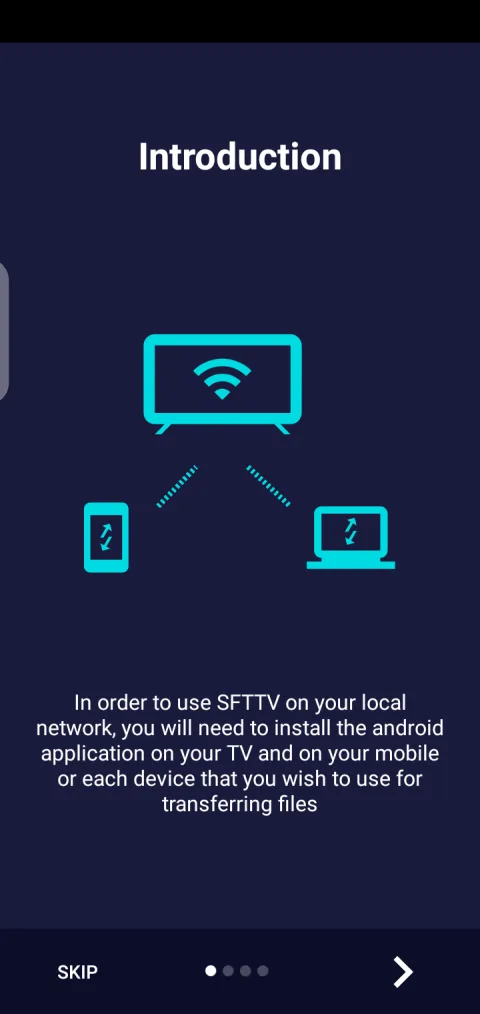
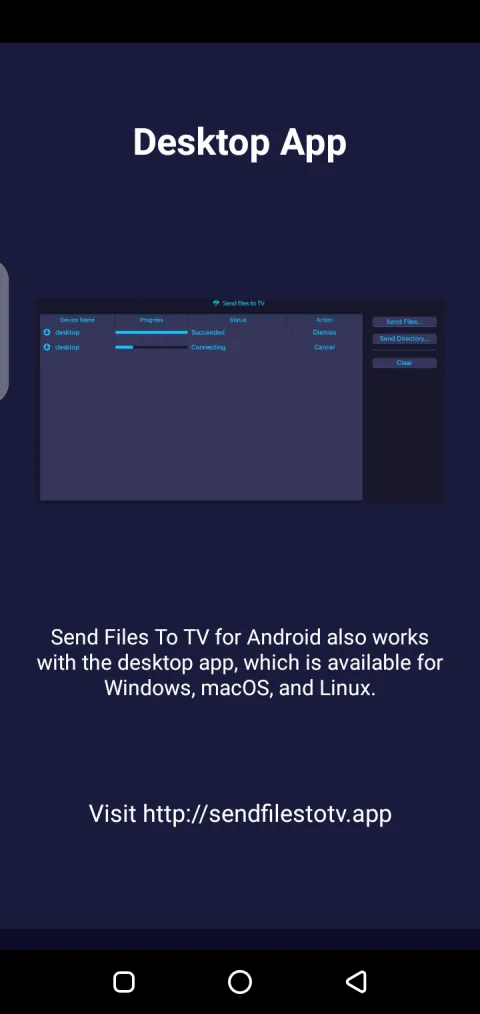
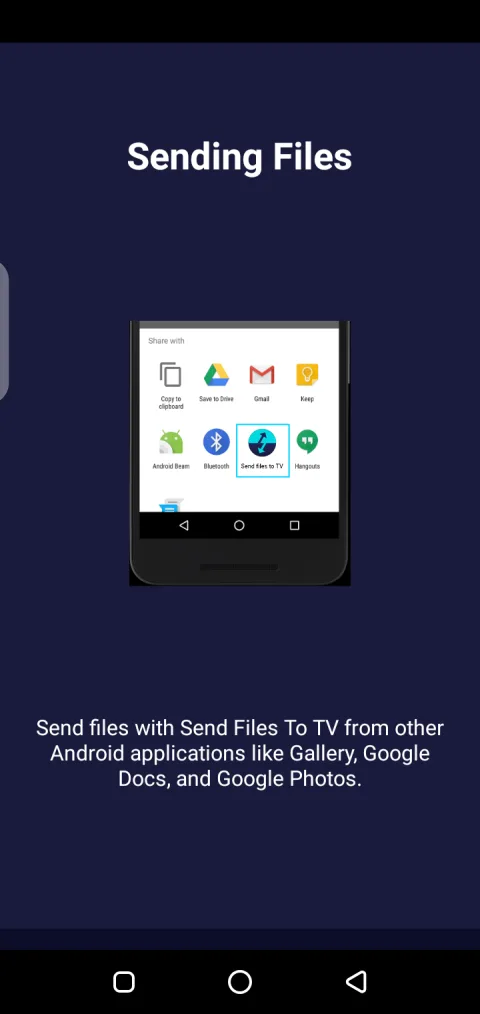
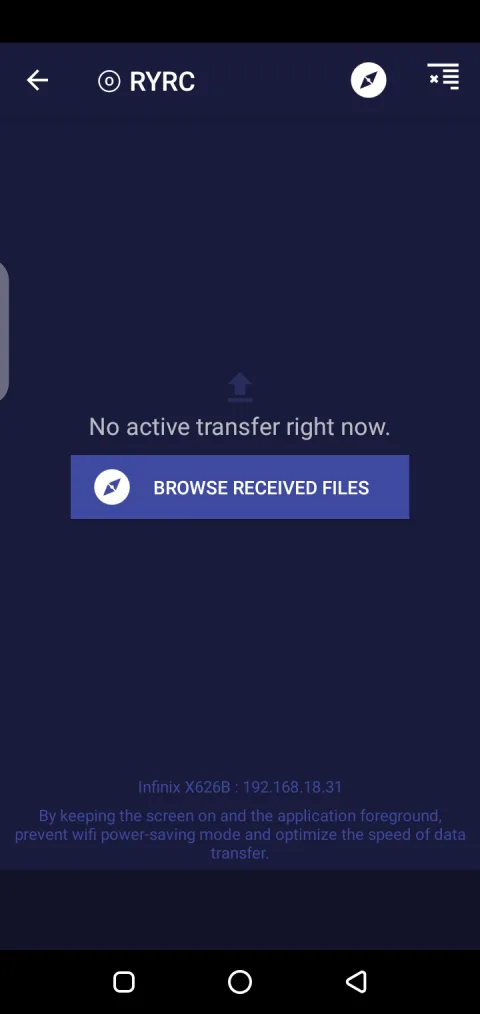
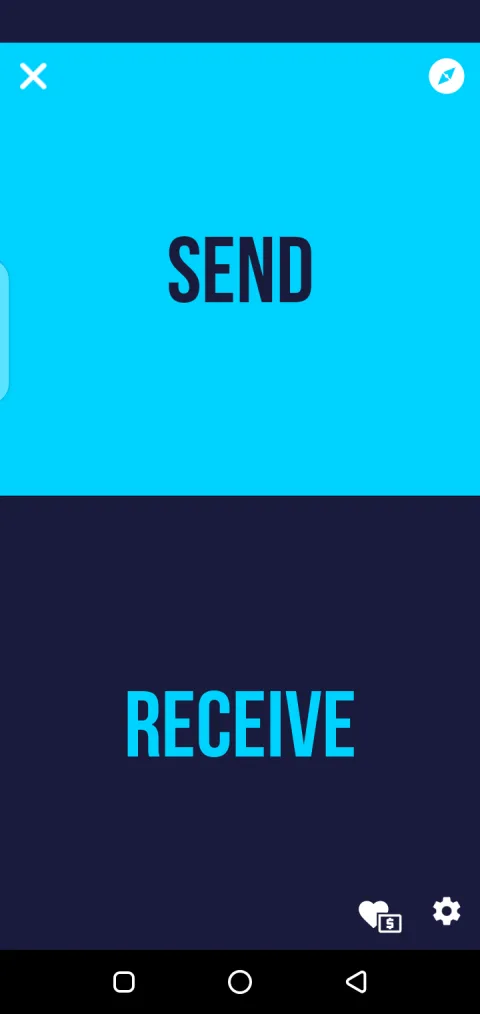
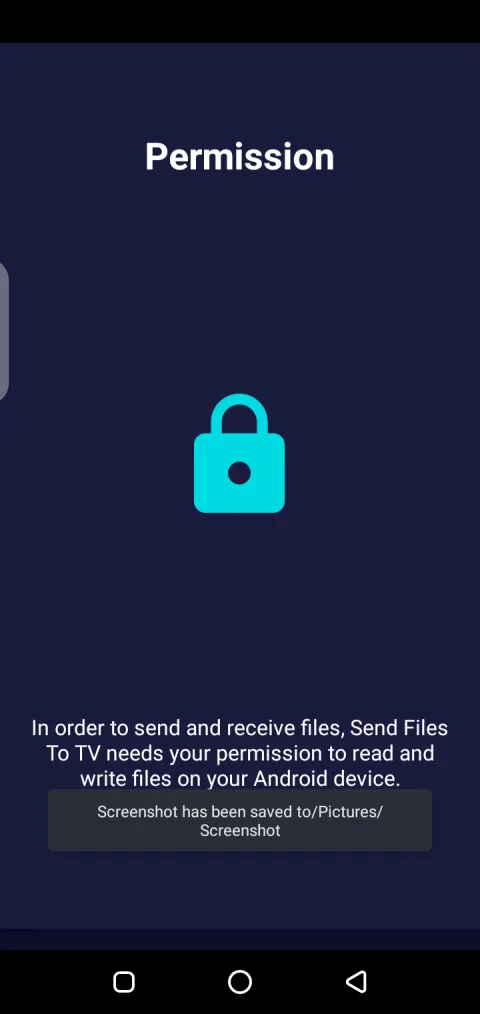
What Is Send Files To TV?
Send Files To TV is a file-sharing application designed for transferring files between Android devices and television platforms.
The main purpose of the application is to simplify the process of moving digital files from one device to another through a wireless connection.
Instead of using traditional transfer methods, users can send files directly between compatible devices connected to the same network environment.
The application can be useful for transferring:
- APK files
- Videos
- Images
- Documents
- Other digital content
The platform is especially useful for Android TV users who want a simple way to receive files from smartphones or other Android devices.
How Send Files To TV Works
The application works by creating a connection between sending and receiving devices.
The basic process includes:
- Install Application On Devices
- Connect Devices To Same Network
- Select File To Transfer
- Choose Receiving Device
- Complete Transfer
This straightforward process allows users to move files without requiring advanced technical knowledge.
The application focuses on reducing the complexity of file sharing by creating a direct transfer experience between compatible devices.
Wireless File Transfer Experience
Wireless file transfer has become increasingly important because users now manage large amounts of digital content across multiple devices.
Traditional transfer methods often require:
- USB cables
- External storage devices
- Additional hardware
- Complex configurations
Wireless transfer provides a more convenient alternative.
Send Files To TV creates a simpler experience by allowing users to transfer content through network-based communication.
The benefits include:
No Physical Cables Required
Users can transfer files without connecting devices through cables.
This makes the process more flexible and convenient, especially when devices are located in different areas.
Faster Device Communication
A direct wireless connection can make file sharing easier between compatible devices.
Users can quickly move content without unnecessary setup steps.
Simple User Interaction
The application focuses on making file transfers accessible for regular users.
A straightforward interface allows users to select files and send them with fewer steps.
Sending Files To Android TV
Android TV devices provide access to entertainment applications, streaming platforms, and digital content.
However, managing files on television devices can sometimes be challenging because TVs usually do not offer the same convenience as smartphones.
Send Files To TV helps solve this problem by allowing users to transfer files from mobile devices directly to their television environment.
Common uses include:
Installing Applications
Users can transfer APK files from their smartphones to Android TV devices.
This makes application management easier when files are already available on another device.
Moving Media Files
Users can send:
- Videos
- Images
- Personal media
to larger screens for easier viewing.
Managing Digital Content
The application provides a convenient way to organize and move files between connected devices.
Smartphone To TV File Sharing
Smartphones are often the primary place where users store digital files.
People capture videos, download applications, and save documents on their mobile devices.
Moving these files to a television can improve accessibility and provide a larger-screen experience.
Send Files To TV creates a connection between:
- Android smartphones
- Android TV devices
- Smart TV platforms
- Other compatible devices
This allows users to manage their content more efficiently.
Why File Transfer Applications Are Useful
As digital content continues growing, users need easier ways to manage files across different devices.
File transfer applications provide several advantages:
Convenience
Users can move content without complicated procedures.
Device Compatibility
Different devices can communicate more easily through supported transfer methods.
Better Content Management
Users can organize and access files where they need them.
Send Files To TV User Experience
A successful file transfer application needs to provide a simple experience because users want quick results.
Important parts of the experience include:
Easy Navigation
Users should be able to find transfer options without confusion.
Simple File Selection
Choosing files should require minimal steps.
Clear Transfer Process
Users should understand when files are being sent and when the process is completed.
Android TV File Management
Android TV platforms provide entertainment-focused experiences, but managing external files may require additional solutions.
Users may need to transfer files for:
- Application installation
- Media playback
- Content management
- Device customization
A dedicated transfer application simplifies these tasks by creating a bridge between mobile devices and television systems.
Send Files To TV Features And File Transfer Experience
Digital devices have become more connected than ever before. Users now store different types of content across smartphones, tablets, computers, and television devices. As the number of connected devices increases, the need for simple and efficient file transfer solutions also becomes more important.
Send Files To TV provides a convenient way to transfer digital files between compatible devices, especially smartphones and Android TV platforms.
The application focuses on improving the process of moving content by providing:
- Wireless file sharing
- Device-to-device communication
- Simple transfer controls
- Android TV support
- Convenient content management
Send Files To TV Features
The value of a file transfer application depends on how easily users can move and manage their content.
Send Files To TV provides several features designed to simplify wireless sharing between devices.
Wireless File Sharing
One of the main features of the application is wireless file transfer.
Traditional transfer methods often require physical connections, external storage devices, or additional equipment.
Wireless sharing provides a simpler approach by allowing users to send files through connected devices.
This makes transferring content easier for:
- Smartphones
- Android TV devices
- Tablets
- Other compatible platforms
Transfer Different File Types
A useful file-sharing application should support different types of digital content.
Send Files To TV can be used for transferring:
APK Files
Users can move application packages between devices, especially when managing applications on Android TV systems.
Videos And Media
Large media files can be transferred for viewing on larger screens.
Examples include:
- Personal videos
- Downloaded media
- Entertainment files
Images And Documents
Users can also move images, documents, and other personal files between compatible devices.
Smartphone To Smart TV Connectivity
Smartphones have become the primary storage location for many users' digital files.
People often keep:
- Applications
- Photos
- Videos
- Documents
on their mobile devices.
Send Files To TV creates a connection between mobile devices and television platforms, allowing users to move content more conveniently.
This connectivity helps users access their files on larger screens without complicated transfer methods.
Android TV File Transfer Experience
Android TV provides a powerful entertainment environment, but transferring external files to television devices can sometimes be difficult.
Users may need to move files for different purposes, including:
Application Management
Users can transfer application files when managing apps on compatible TV systems.
Media Access
Files stored on smartphones can be moved to TV devices for larger-screen viewing.
Device Organization
Users can manage digital content across multiple devices more effectively.
Simple User Interface
A file transfer application should focus on usability because users usually want quick and simple results.
A clear interface helps users:
- Select sending devices
- Choose files
- Find receiving devices
- Complete transfers
The simpler the process, the easier it becomes for different types of users to manage their content.
Fast Device Communication
Efficient communication between devices is important for file transfer applications.
Send Files To TV focuses on creating a direct sharing experience where compatible devices can communicate easily.
A better transfer process depends on:
- Network conditions
- Device performance
- File size
- Connection stability
Managing Large Files
Modern digital content often includes large files such as high-quality videos and application packages.
A useful transfer solution should help users handle different file sizes.
Large file transfers can be affected by:
Network Speed
Faster connections generally provide better transfer performance.
Device Capability
The sending and receiving devices influence the overall process.
Storage Availability
Both devices need enough space for successful transfers.
Why Users Choose File Transfer Applications
File transfer tools are useful because they solve a common problem: moving content between devices.
Users benefit from:
Convenience
Files can be transferred without complicated procedures.
Better Device Integration
Different devices can work together more easily.
Improved Content Access
Users can access files where they need them.
Send Files To TV For Home Entertainment
Home entertainment setups often include multiple connected devices.
Users may have:
- Smartphones
- Smart TVs
- Android TV boxes
- Streaming devices
A file transfer application helps connect these devices and improves how users manage their digital content.
Examples include:
- Sending videos from a phone to a TV
- Moving applications to Android TV
- Sharing personal media
Improving File Transfer Experience
Users can improve transfer performance by following simple practices.
Keep Devices Connected Properly
Both devices should maintain a stable connection during transfers.
Maintain Available Storage
Enough storage space prevents transfer failures.
Keep Devices Updated
Updated systems can provide better compatibility and performance.
Security Considerations During File Sharing
File transfer involves moving personal data between devices, so users should maintain awareness.
Important practices include:
- Sharing files only with trusted devices
- Reviewing transferred content
- Maintaining device security
Responsible file management helps create a safer digital environment.
Future Of Device-To-Device Sharing
As smart devices continue growing, simple connectivity solutions will become increasingly important.
Future file-sharing experiences may focus on:
- Faster transfers
- Better device compatibility
- Easier automation
- Improved user control
Applications that simplify communication between devices will continue supporting modern digital lifestyles.
Send Files To TV Installation And Setup Guide
Installing and setting up a file transfer application correctly is an important step for creating a smooth device communication experience.
Send Files To TV is designed to help users transfer files between smartphones, Android TV devices, and other compatible platforms. Proper setup allows users to establish a connection and start sharing digital content more efficiently.
The setup process focuses on:
- Application installation
- Device connection
- Network preparation
- File transfer configuration
- Usage optimization
Users who want to understand the complete application experience can explore Send Files To TV.
Preparing Devices Before Installation
Before installing a file transfer application, users should prepare their devices properly.
Good preparation helps reduce common setup problems and improves the overall experience.
Important preparation steps include:
Checking Device Compatibility
Users should confirm that their devices support the application environment.
Important factors include:
- Operating system version
- Device performance
- Available storage
Compatible devices provide a smoother file-sharing experience.
Maintaining Storage Space
File transfer requires enough storage on both sending and receiving devices.
Users should ensure:
- Available space for incoming files
- Proper device storage management
- Removal of unnecessary data if needed
Connecting Devices To The Same Network
Wireless transfer applications usually require devices to communicate through a shared network environment.
A stable connection helps improve:
- Transfer speed
- Device detection
- Overall reliability
Installing Send Files To TV
The installation process is designed to be simple for regular users.
The general setup process includes:
Installing The Application
Users install the application on the required devices where file transfer will take place.
This may include:
- Android smartphones
- Android TV devices
- Compatible receiving devices
Opening The Application
After installation, users can open the application and access the main transfer interface.
The application provides options for:
- Sending files
- Receiving files
- Selecting connected devices
Allowing Required Access
Some device permissions may be required for proper functionality.
Users should review requested permissions and understand their purpose before continuing.
Connecting Devices For File Transfer
After installation, the next step is establishing communication between devices.
The connection process usually involves:
Opening The Application On Both Devices
Both sending and receiving devices should have the application ready.
Selecting Transfer Direction
Users can choose whether the device will:
- Send files
- Receive files
Finding The Target Device
The application identifies available devices within the connection environment.
Users can then select the intended receiving device.
Sending Files Between Devices
Once devices are connected, users can begin transferring content.
The basic process includes:
- Select File
- Choose Receiving Device
- Start Transfer
- Complete File Sharing
This simple process allows users to move content without complicated configurations.
Common Setup Problems
Some users may experience issues during installation or connection.
Understanding common problems helps solve them more effectively.
Device Not Detected
A common problem is when the sending device cannot find the receiving device.
Possible causes include:
- Different network connections
- Application not opened on both devices
- Connectivity problems
Possible solutions:
- Check network connection
- Restart the application
- Confirm both devices are ready
Transfer Failure
Sometimes files may fail to transfer successfully.
Possible reasons include:
- Weak connection
- Insufficient storage
- Interrupted communication
Solutions include:
- Checking available storage
- Reconnecting devices
- Trying the transfer again
Slow Transfer Speed
Transfer speed depends on different factors.
These may include:
- File size
- Network quality
- Device performance
Users can improve speed by maintaining a stable connection and reducing unnecessary network usage.
Using Send Files To TV For APK Transfer
One common use case is transferring APK files to Android TV devices.
Users may need to move application files from smartphones to television platforms.
This can be useful when:
- Managing TV applications
- Installing compatible apps
- Moving files already stored on another device
The transfer process provides a convenient bridge between mobile devices and Android TV systems.
Using Send Files To TV For Media Sharing
Beyond applications, users can transfer different types of media content.
Examples include:
Videos
Users can move personal videos or downloaded media for larger-screen viewing.
Images
Photos and visual content can be transferred between connected devices.
Documents
Users can also share different document files when needed.
Improving Setup Performance
Users can improve their experience through proper device management.
Helpful practices include:
Keep Applications Updated
Updated software may provide better compatibility and stability.
Maintain Device Performance
Optimized devices generally provide smoother communication.
Use Stable Connections
Reliable network conditions improve transfer consistency.
Frequently Asked Questions
Conclusion
Proper installation and setup are important for creating a smooth file-sharing experience.
Send Files To TV provides a simple way to connect devices and transfer digital content between smartphones, Android TV systems, and compatible platforms.
By preparing devices correctly, maintaining stable connections, and following proper setup steps, users can manage their files more conveniently across different devices.